
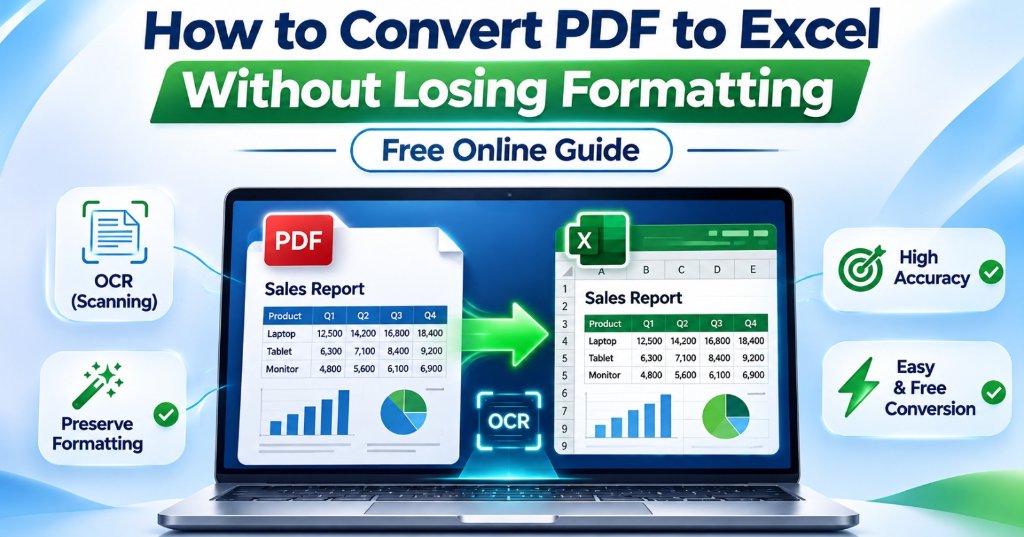
Why PDF-to-Excel conversion is challenging
A PDF is designed to display a page consistently; Excel is designed to organize editable data. That difference explains why a neat-looking report can become a messy spreadsheet after conversion. Borders, merged cells, page headers, and line breaks may be visual elements rather than true table structure. A PDF to Excel converter free workflow can save hours of manual typing, but good results still depend on the source file and a quick quality check. The goal is not simply to move text into cells. It is to produce a workbook you can sort, filter, calculate, and trust.
Understand your PDF before converting
Start by determining whether the PDF is digital or scanned. In a digital PDF, you can usually select and copy individual text. In a scanned PDF, each page may be a picture of printed content. Digital tables often convert more cleanly because the characters already exist as text. Scans need optical character recognition, or OCR, to identify letters and numbers. Low contrast, skewed pages, handwriting, and overlapping stamps make OCR less reliable. If the document contains multiple tables, note where each table starts and whether the column headings repeat across pages.
Step-by-step: convert PDF to Excel online
Step 1 — Locate the original PDF. Whenever possible, use the original export instead of a photographed or repeatedly compressed copy.
Step 2 — Start with the Entertainment Couch PDF to Excel converter. Review the supported file formats, conversion settings, and any available OCR options before uploading.
Step 3 — Upload the PDF and choose any relevant options the tool provides. If the document is scanned, look for OCR or scanned-document handling where available.
Step 4 — Start the conversion and allow it to finish. Large or image-heavy files may take longer than simple text-based PDFs.
Step 5 — Download the Excel output if the tool offers an XLSX export. Open it in Excel or another compatible spreadsheet editor.
Step 6 — Compare the workbook with the original PDF. Verify headings, row order, numeric values, merged regions, and the first and last rows of every table.
Step 7 — Save a cleaned working copy. Keep the original PDF separately so you can check questionable cells later.
Use the Entertainment Couch converter
When you need editable tables rather than a static document, use the Entertainment Couch PDF to Excel converter to begin the process, then review the workbook carefully before relying on its data.
How to preserve spreadsheet formatting
No converter can guarantee an exact visual match for every PDF because PDF layout does not always map cleanly to rows and columns. Focus first on preserving data relationships: which value belongs under which heading. After conversion, adjust column widths, wrap long headings, and apply consistent date and number formats. Remove empty separator rows only after confirming they do not represent missing data. Be especially careful with merged cells, because they can prevent sorting and filtering. For analysis, a simple rectangular table with one header row is often more useful than an exact replica of the PDF page.
Scanned PDF to Excel OCR: accuracy checks
A scanned PDF to Excel OCR workflow introduces an extra recognition step. Common errors include confusing 0 with O, 1 with I, decimal points with commas, and minus signs with dashes. Currency symbols and percentages can also be dropped. If you extract tables from PDF invoices or financial statements, check subtotals against line items and compare grand totals with the source. For multi-page reports, verify that repeated headers have not been inserted as data rows. If a scan is crooked, straightening or rescanning it before conversion can make a noticeable difference.
Make your Excel file analysis-ready
After PDF to XLSX conversion, turn the data range into an Excel table when appropriate. Confirm that numeric columns contain real numbers rather than text strings; a value that looks like 125.50 may not behave as a number in formulas. Check dates for day-month confusion and preserve leading zeros in identifiers such as account codes or postal codes. Standardize missing values instead of silently replacing them with zero. Use filters to find unexpected blanks, duplicates, and outliers. These steps matter more than decorative formatting when the spreadsheet will support decisions.
Privacy and file handling
PDFs may contain salary information, customer records, financial details, or confidential contracts. Before uploading, check the converter’s privacy policy, data retention practices, and whether processing occurs locally or on a server. Avoid uploading sensitive documents to a service unless its handling meets your organization’s requirements. Where possible, redact unnecessary personal information in a copy of the PDF. Delete temporary files from shared devices and use secure storage for the resulting workbook.
Troubleshooting conversion errors
If all values land in one column, the original PDF may lack clear column boundaries; try a cleaner source or split and organize the output manually. If characters are missing, check whether the PDF uses unusual fonts or needs OCR. If tables break across pages, inspect each boundary and remove duplicated headers carefully. If formulas are absent, remember that a PDF normally contains displayed results, not the original spreadsheet formulas. If the XLSX file opens with warnings, save a fresh copy after checking its contents and avoid enabling macros from untrusted files.
Frequently asked questions
Can I convert a scanned PDF into Excel?
Yes, when the chosen workflow supports OCR, although recognition errors may need correction.
Will the formatting be identical?
Not necessarily. Editable, accurate tables are often a better target than pixel-perfect page reproduction.
Can I extract multiple tables?
Many conversion workflows can, but you should verify where each table appears in the workbook.
Why are numbers stored as text?
PDF extraction may preserve their appearance without recognizing their numeric type. Reformat and validate before calculating.
Is a free converter safe for confidential files?
Safety depends on the service’s actual processing and retention practices; review them before uploading.
Final takeaway
A reliable conversion combines a good source PDF, suitable OCR when needed, and careful spreadsheet validation. Try the Entertainment Couch PDF to Excel page, then check the resulting workbook before using it for reporting, budgeting, or business analysis.